




Guide to Guest Account Creation & Account Linking / Switching
Genesis War
The Ultimate Tactical Saga Reborn, 『Genesis War』
Greetings, this is GM Azidahaka.
To ensure a smooth experience in Genesis War,
we are providing a guide on how to create a Guest Account, as well as how to link or switch accounts.
This guide includes instructions on creating Guest Accounts, linking to official platforms,
and important precautions when switching accounts or logging out.
Please review the details below to protect your valuable game data.
[Guest Account Creation]
1. Upon launching the game for the first time,
tap the main screen to proceed with creating a Guest Account.
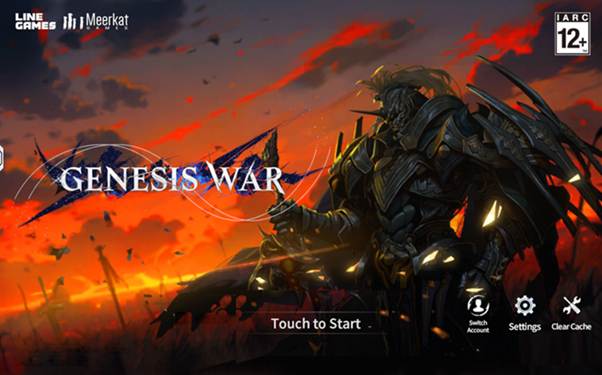
2. Please make sure to read the Guest Account Precautions displayed during the creation process.
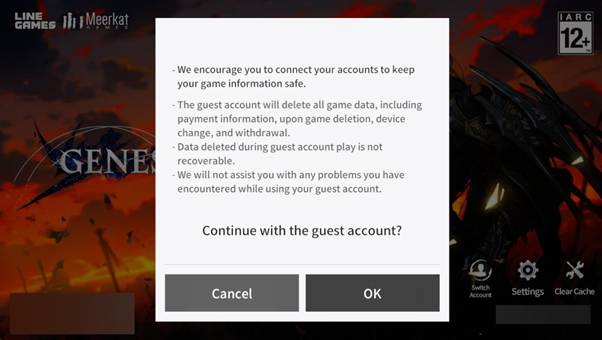
Guest Accounts are generated automatically, allowing you to enjoy the game immediately
without any additional registration or linking.
However, please be aware that Guest Account data may be permanently deleted in the following cases:
-Logging out or switching accounts while using a Guest Account.
-Deleting the game app, changing devices, reinstalling, or during certain updates.
Play data from a deleted Guest Account cannot be recovered,
and we may be limited in the assistance we can provide for issues occurring on unlinked accounts.
To keep your game data safe, please link your account before proceeding.
[Account Linking]
Genesis War supports account linking with Google, Apple, and FLOOR.
1. After logging into the game, go to Menu > Settings > Account tab.
2. In the Account tab, tap the icon of the platform you wish to link to start the process.
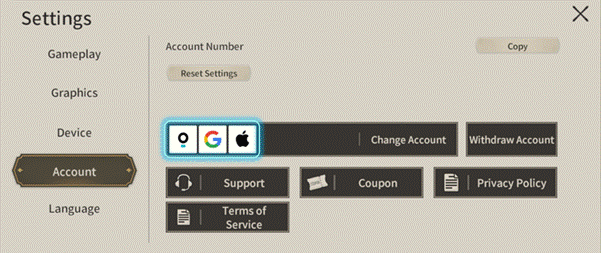
- Select your preferred platform among Google, Apple, or FLOOR.
- Follow the on-screen instructions to log in and complete the link.
- Account linking can only be performed once per platform, so please proceed with caution.
3. Once the link is complete, the corresponding platform button will be deactivated,
and you can verify the type of account currently linked.
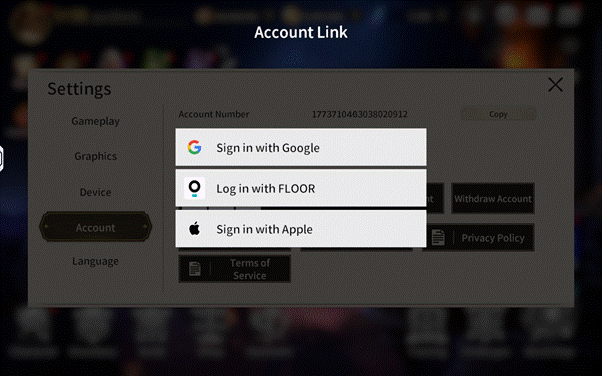
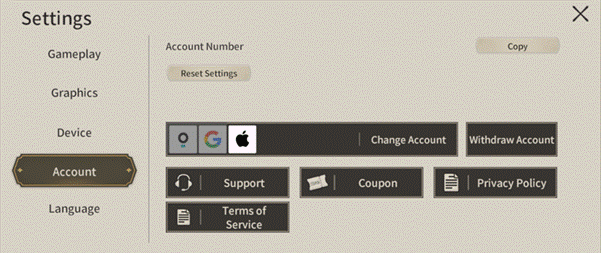
For more details on linking via the FLOOR platform, please check the link below:
▶ [FLOOR Platform Linking Guide]
[Account Switching & Logout]
1. After logging into the game, go to Menu > Settings > Account tab.
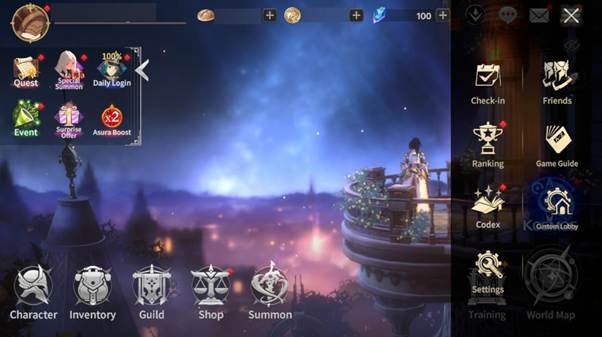
2. Tap the Switch Account button located to the right of the linked platform icons.
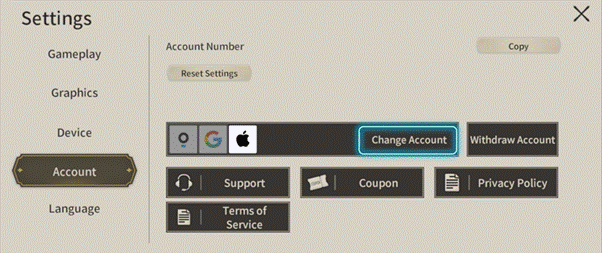
3. A logout confirmation message will appear.
Tapping [Confirm] will log you out and return you to the main title screen.
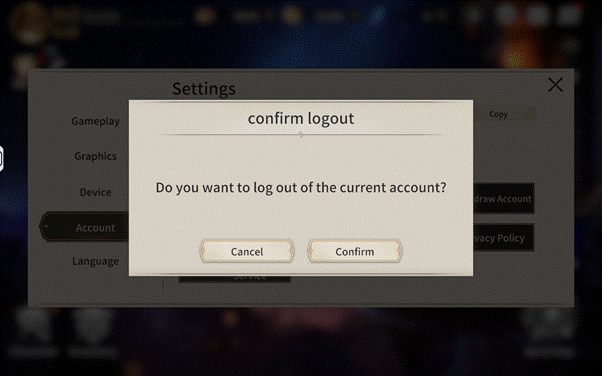
If you are using a Guest Account, all data will be deleted upon logging out or switching accounts.
Please ensure your account is linked before proceeding.
4. On the main title screen, you can tap [Switch Account] to log in
with a different linked account or a new Guest Account.
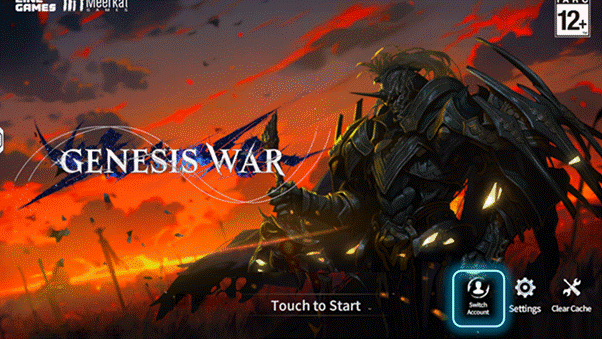
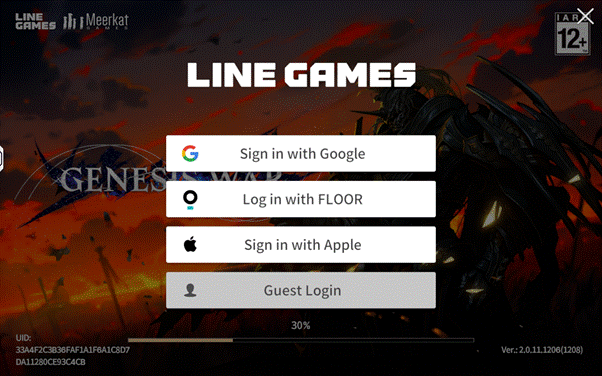
You can also use the Switch Account feature immediately upon launching the game to access your desired account.
※ All images were captured in a test environment.
※ Actual in-game images may change depending on the update.

Move to the Login page?
Move to the login page?
두줄일떄 텍스트
등록한 상품 바로가기(링크)두줄일떄 텍스트
등록한 상품 바로가기(링크)두줄일떄 텍스트
등록한 상품 바로가기(링크)Your Game ID (NID) can be found in your game profile or settings.